

Importing Postman Collections from Azure DevOps and GitHub - Part 2
Welcome back BC Artisans.
In Part 1 we covered the basics, importing Postman collections using Raw URLs and downloading files manually. Both work, but both are manual and one-time.
In this part, we'll connect your GitHub account directly to Postman so you can browse your repos and import collections without leaving the app. No raw URLs, no downloading files, no switching tabs.
Connecting Your GitHub Account to Postman
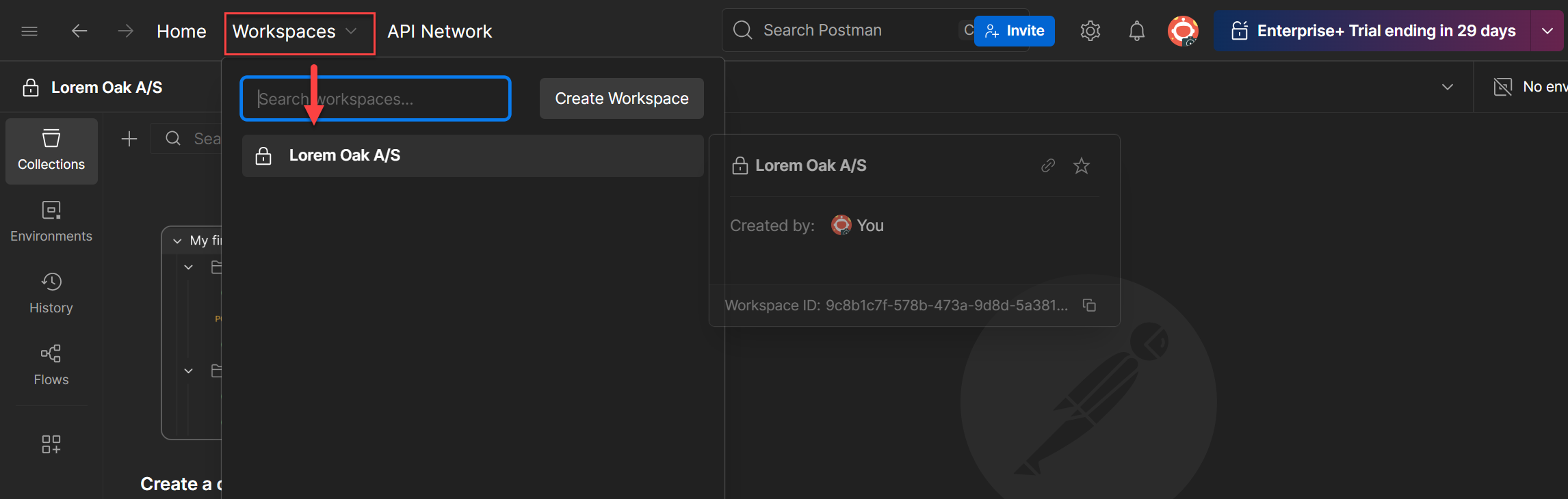
Before you can import from GitHub inside Postman, you need to connect your GitHub account first. You only need to do this once.
1. Open the Import dialog
Launch Postman and make sure you're in the right workspace. On the left sidebar, click Import (right next to the New button).
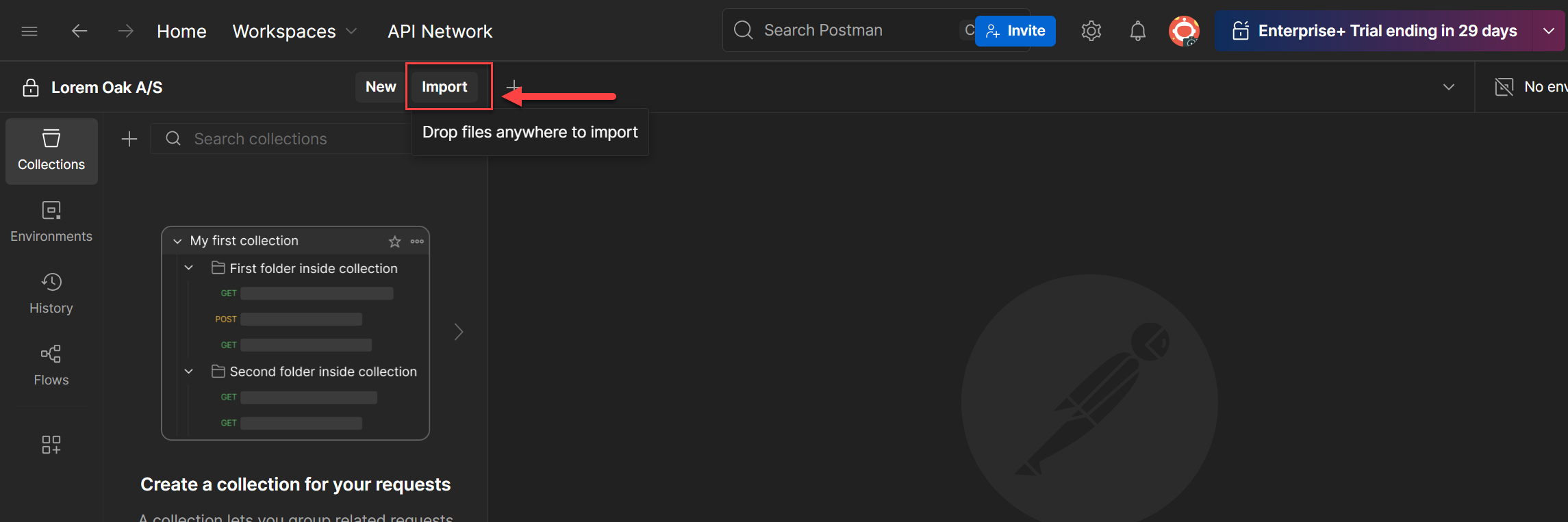
A prompt will pop up saying "Import your API or Connect Your Local Repo".
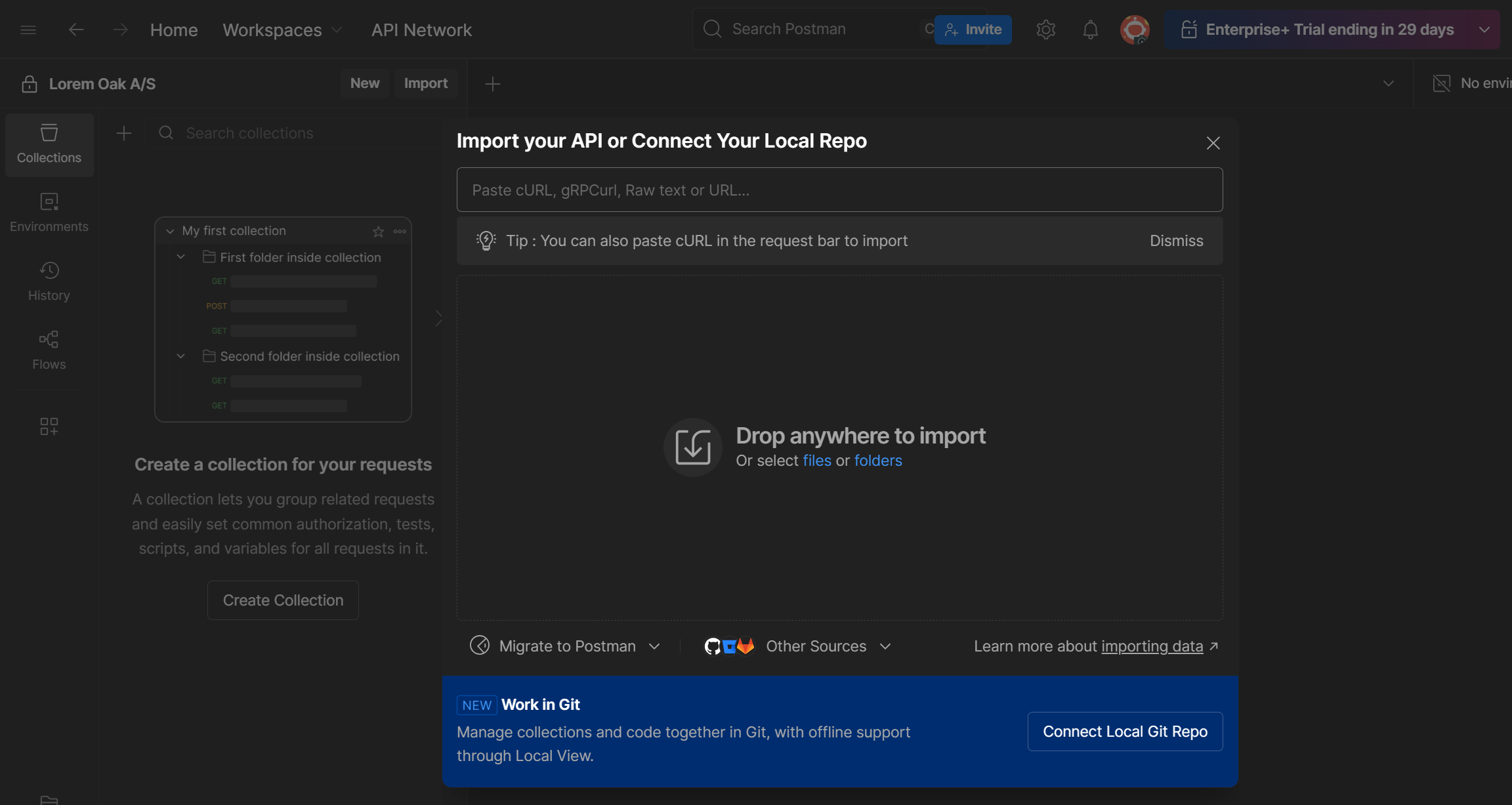
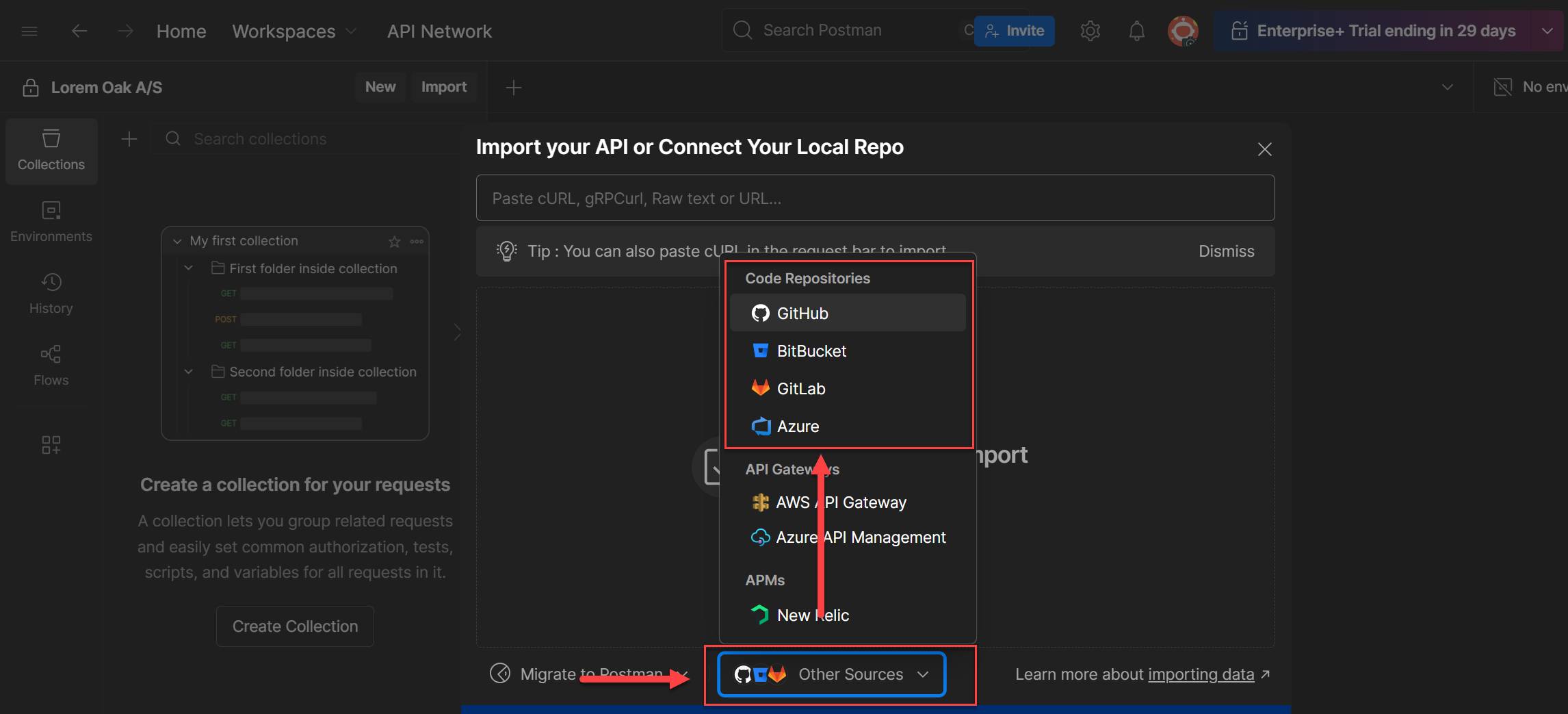
2. Click Other Sources
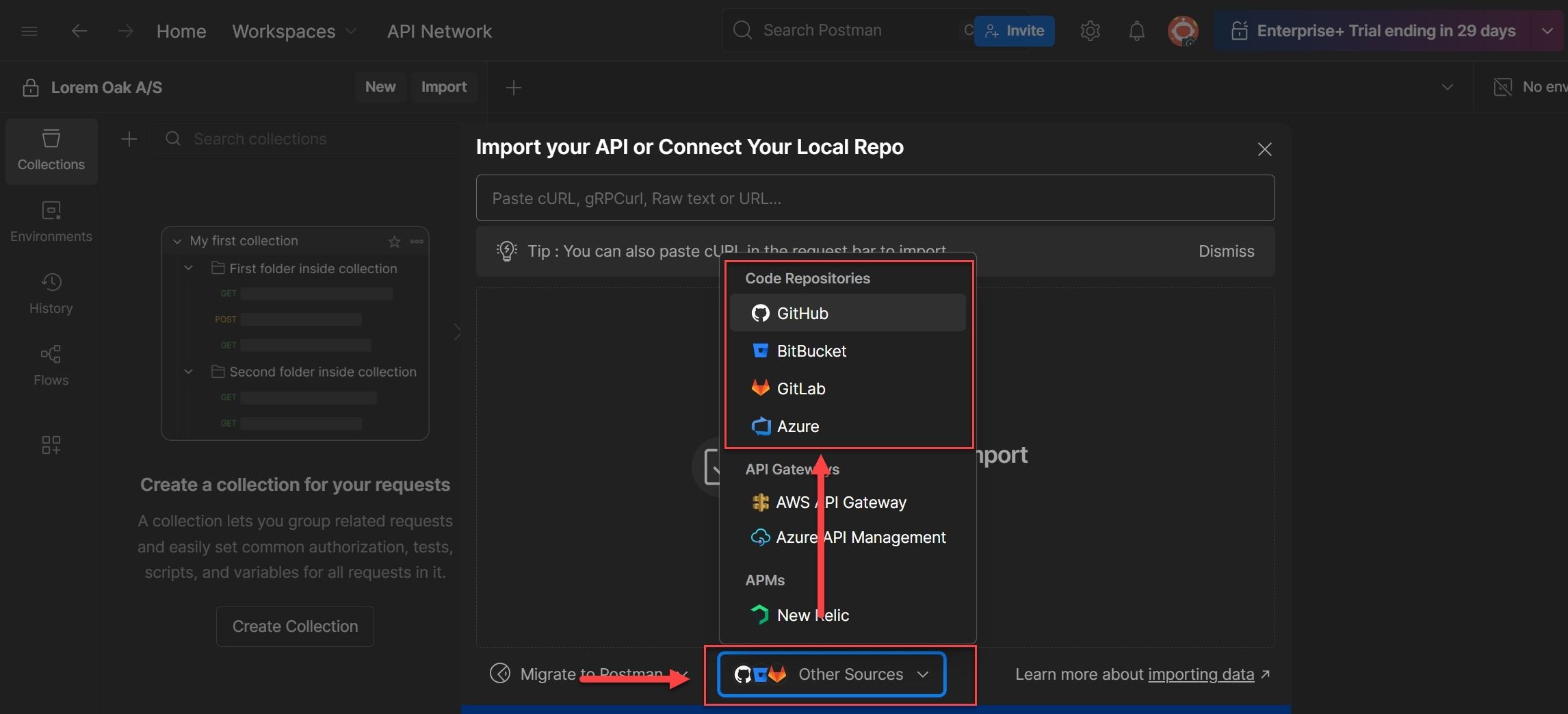
At the bottom of the import dialog, you'll see Other Sources. Click it and you'll get a list of Git providers - GitHub, Bitbucket, GitLab, Azure DevOps.
Pick GitHub.
3. Authenticate with GitHub
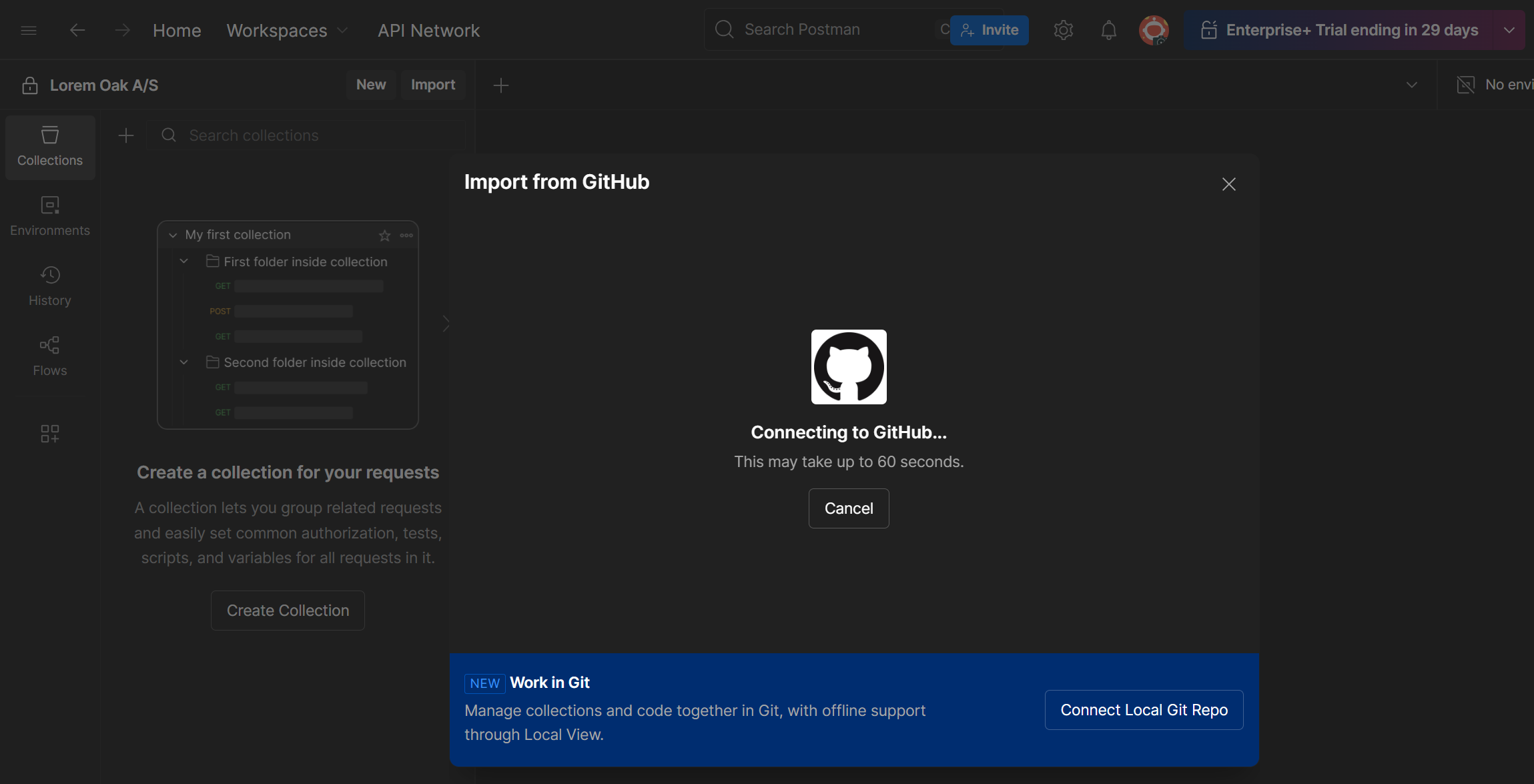
A popup called "Import from GitHub" will appear, and it will open your browser for authentication. This is like an SSO or device auth flow that redirects you to GitHub.
Click Continue to proceed.
4. Authorize Postman on GitHub
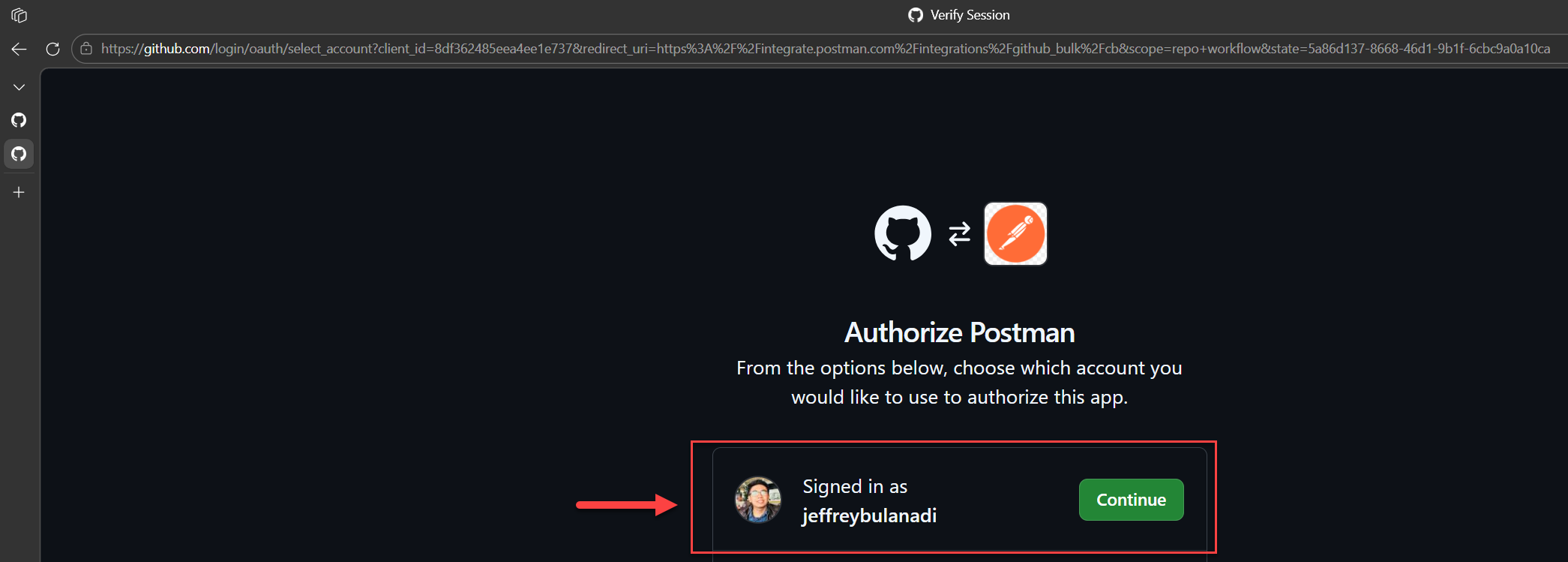
Your browser will show an authorization page where Postman is requesting access to your GitHub account. This includes access to your repositories (public and private) and workflows like GitHub Actions.
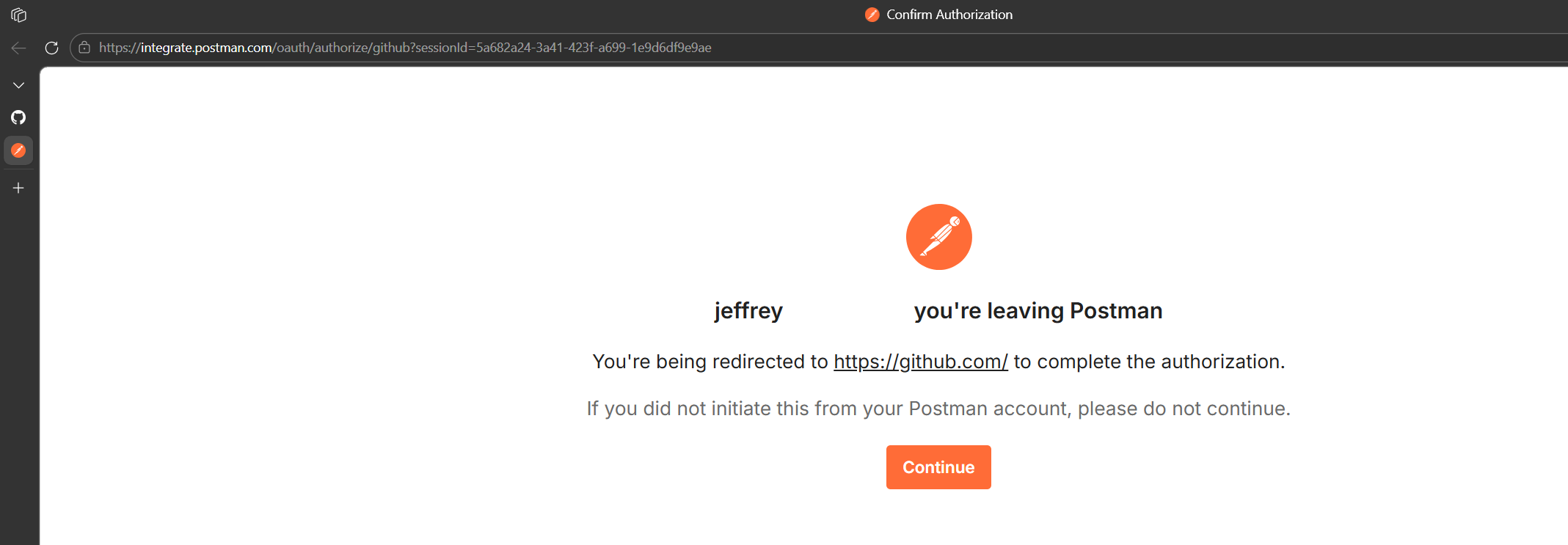
Click Continue to Authorize access.
5. Return to Postman
After authorizing, your browser will try to redirect you back to Postman. You'll see a prompt saying "This site is trying to open Postman". Click Open.
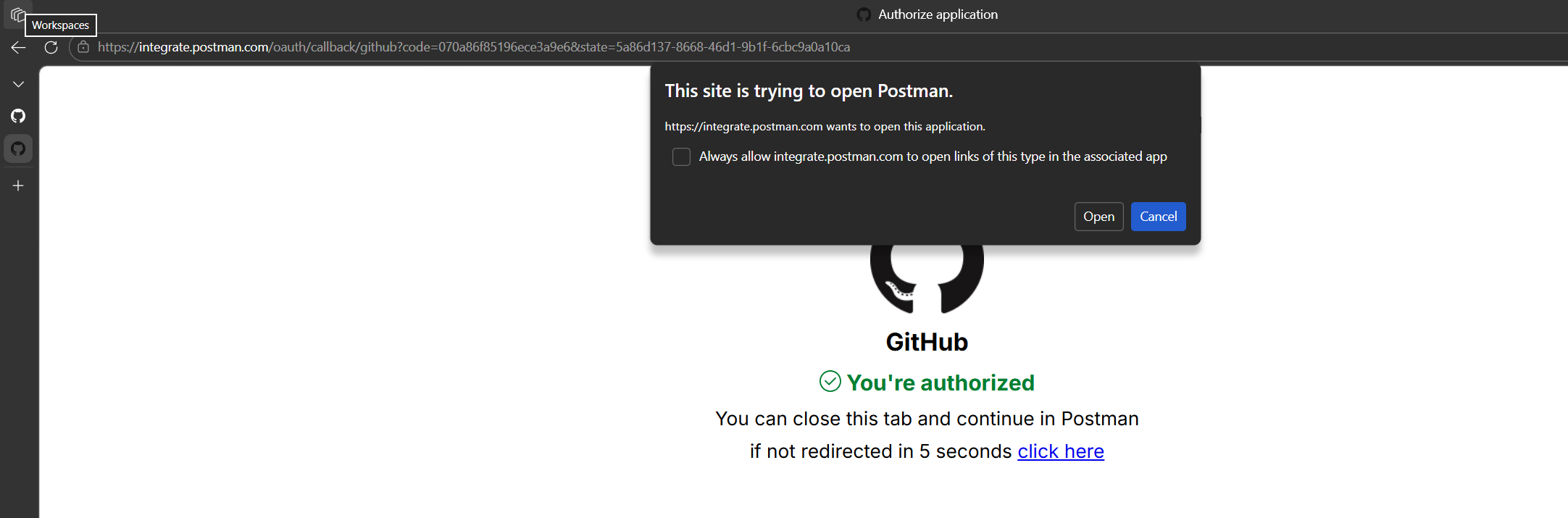
That's the authentication done. You only need to do this once. Now let's actually import something.
Importing a Collection from GitHub
Now that your GitHub account is connected, you can browse your repos and import collections right from Postman.
1. Open Import and select GitHub
Go back to Import on the left sidebar. This time when you click Other Sources and select GitHub, it won't ask you to authenticate again. Instead, you'll go straight to the repo selection.
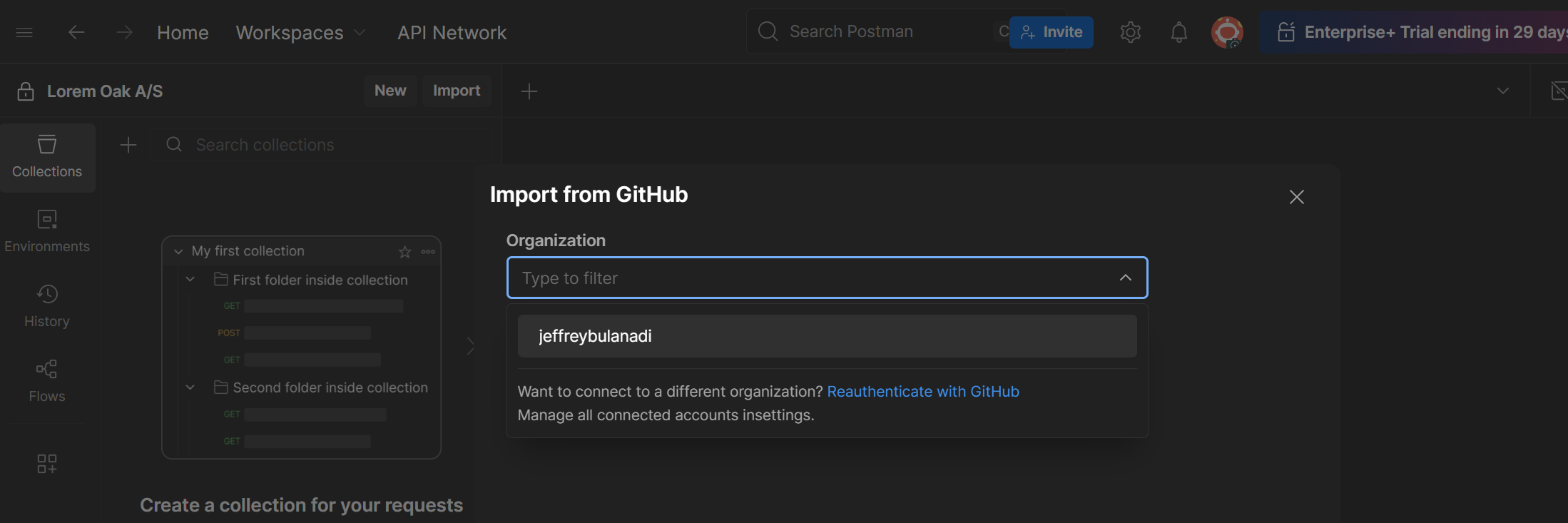
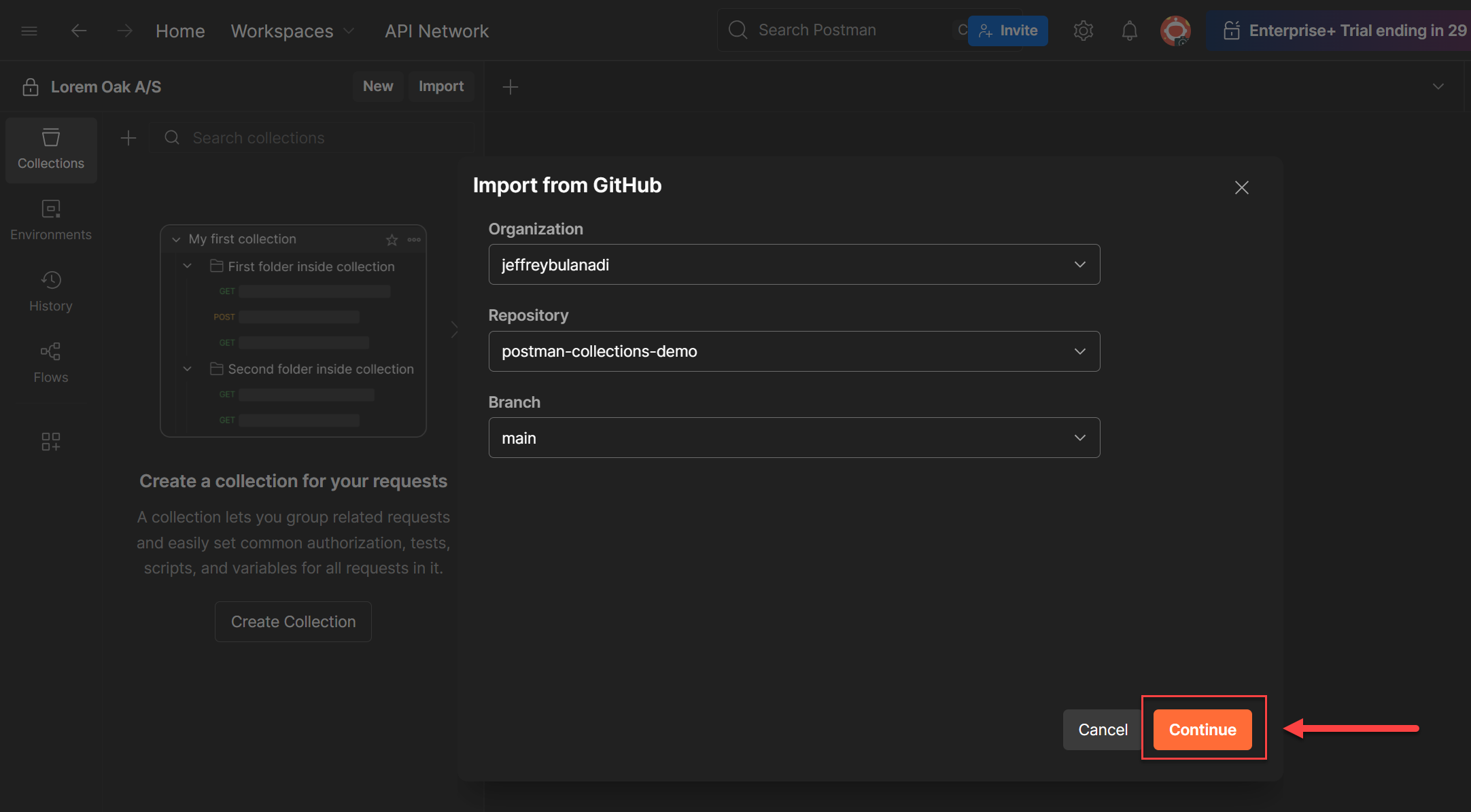
2. Select your Organization
A dropdown will show all the GitHub organizations and accounts you have access to. Pick the one that owns the repo with your Postman collection.
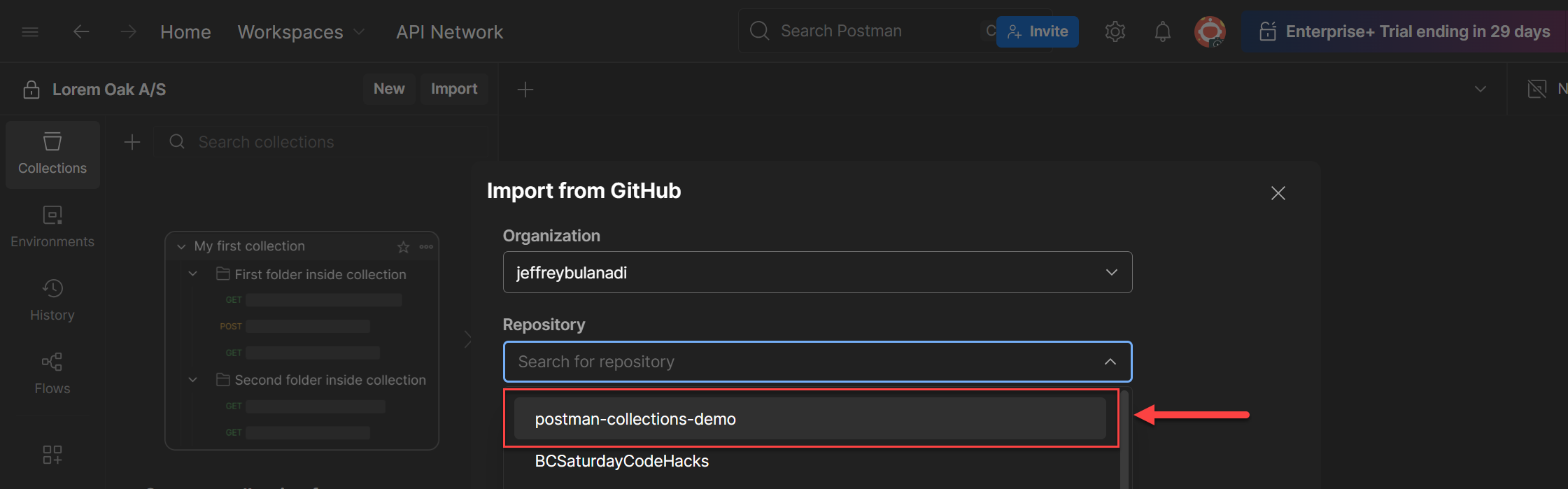
3. Select the Repository
Once you pick the org, a repository dropdown will appear. Find the repo where your collection .json file is stored.
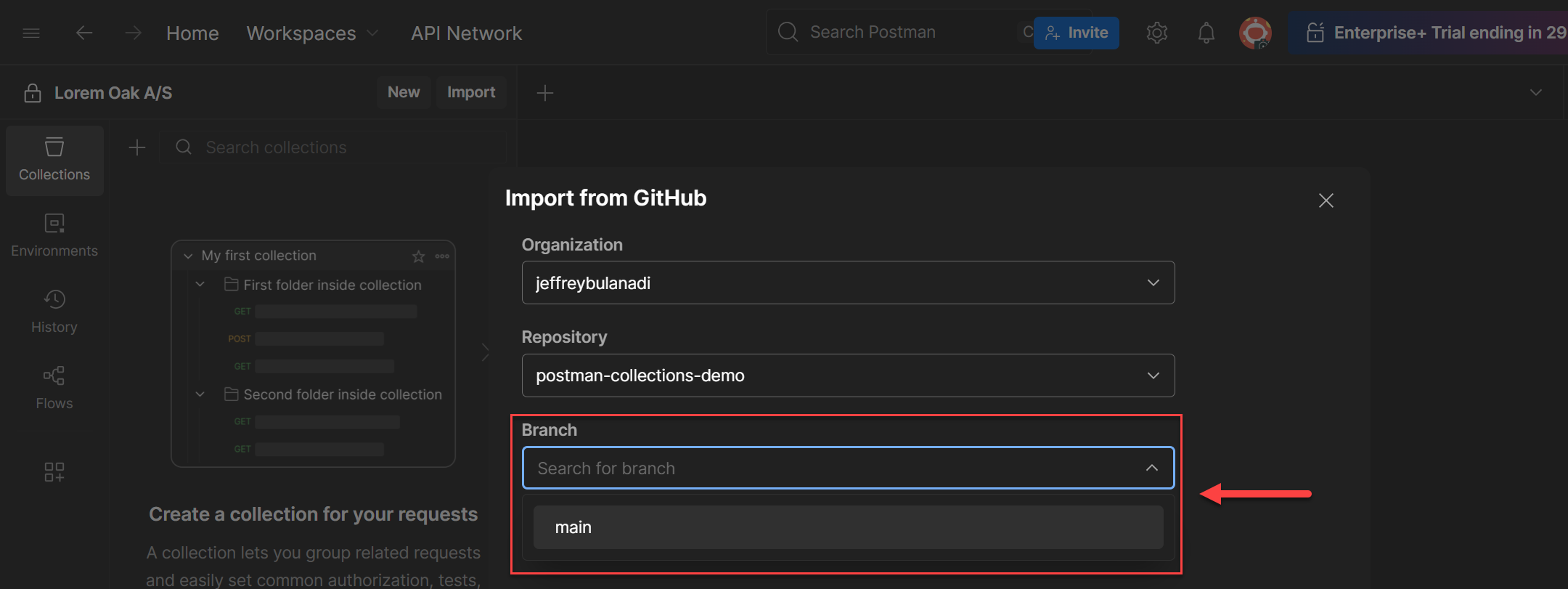
4. Select the Branch
After picking the repo, the branch dropdown shows up. Choose the branch that has the collection file you want to import (e.g., main).
5. Continue and import
Click Continue and Postman will pull in the collection files from that repo and branch. The collection will show up in your workspace just like any other import.
How Is This Different from Part 1?
Fair question. In Part 1 you had to:
- Go to GitHub in your browser
- Navigate to the file
- Click Raw
- Copy the URL
- Go back to Postman
- Paste it in the Import dialog
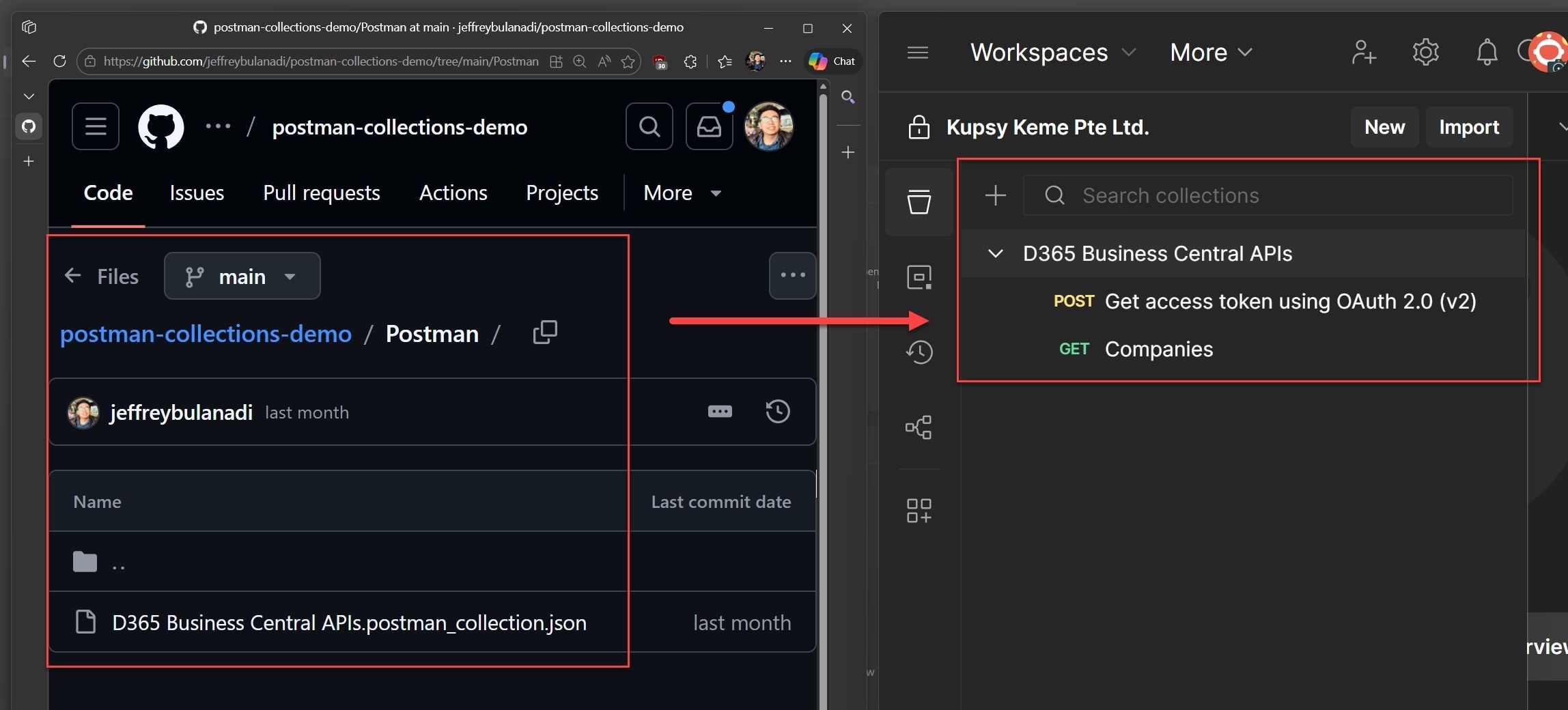
With this method, you skip all of that. You stay inside Postman, browse your repos directly, and pick what you want to import. No tab switching, no hunting for raw URLs.
It's the same end result, your collection ends up in Postman - but the process is cleaner when you're doing it often or across multiple repos.
Bonus: Sharing a Collection via API Link
Here's something useful. What if you want to share your collection with someone who isn't in your GitHub org, or your repo is private and you don't want to make it public just for this?
Postman lets you generate a shareable API link for any collection. Anyone with the link can import it, no GitHub or Azure DevOps access needed.
1. Open the Share dialog
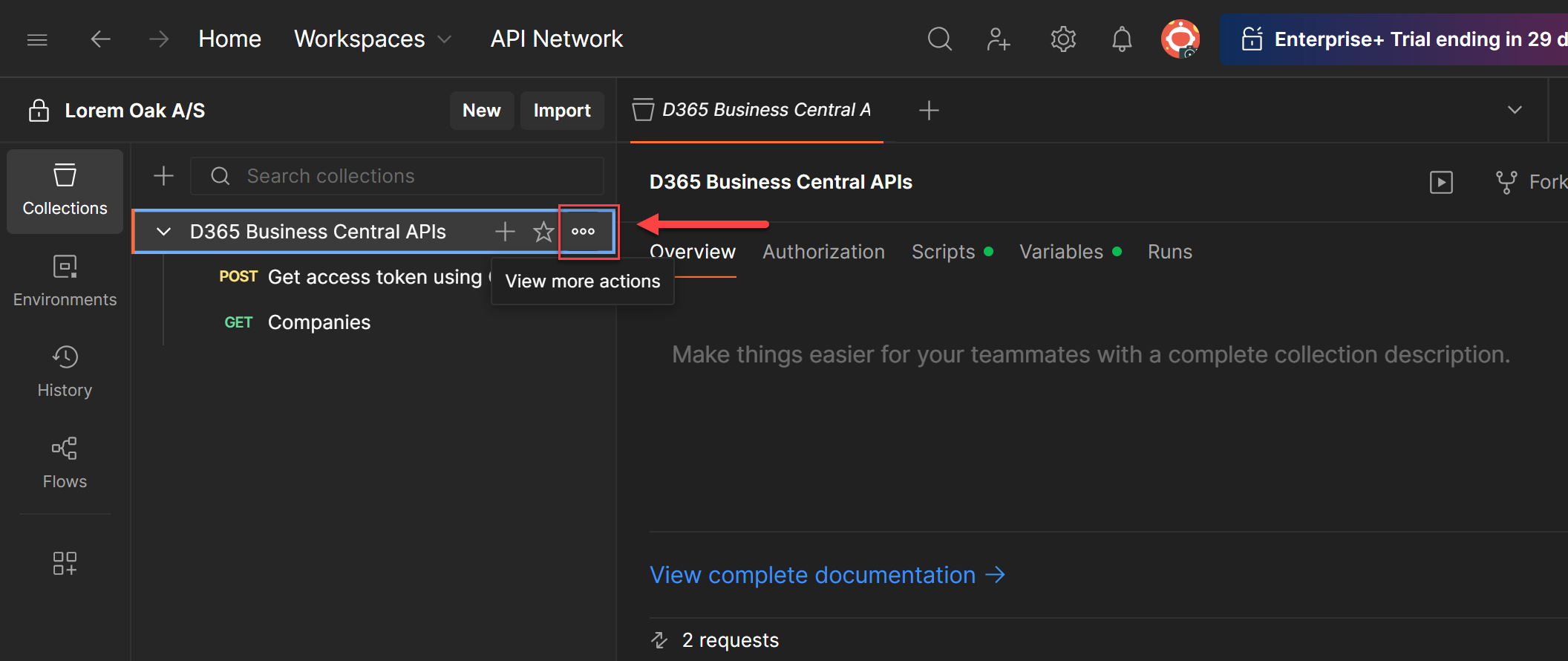
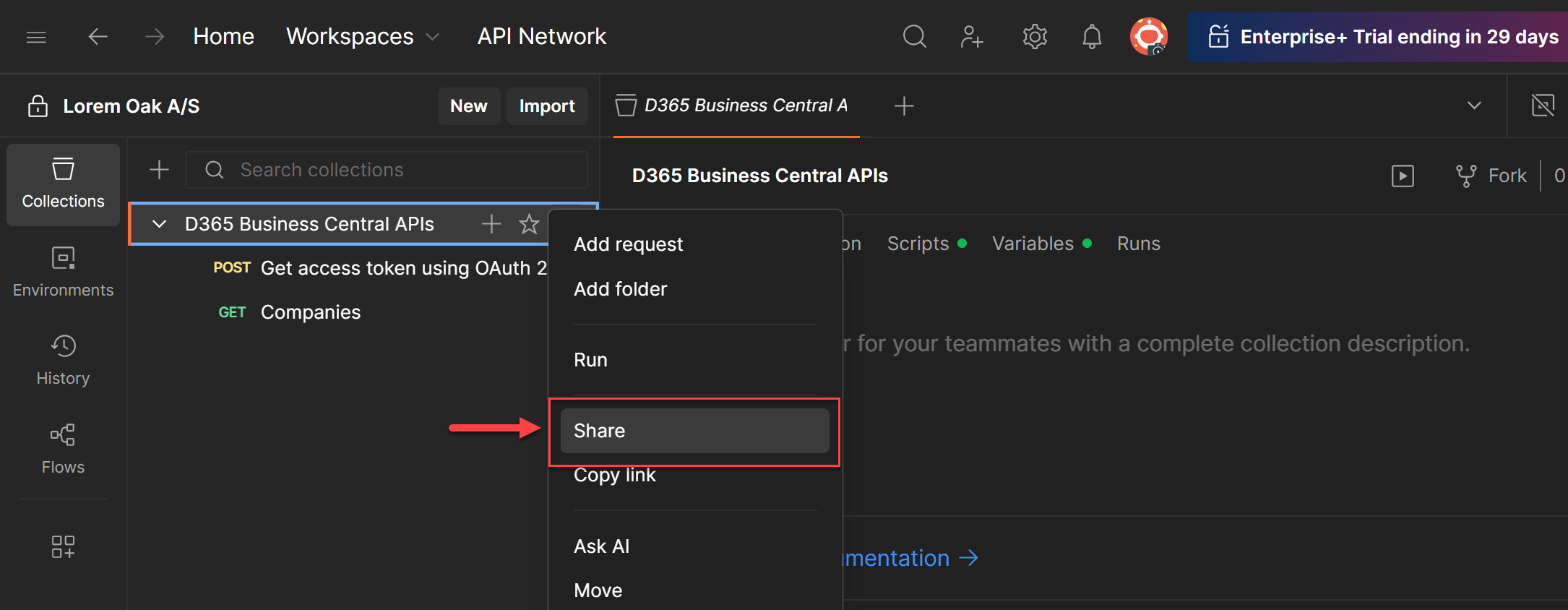
In Postman, hover over the collection you want to share until you see the three-dotted icon (the View more actions button). Click it and select Share.
2. Open Share via API
A Share collection prompt will pop up.
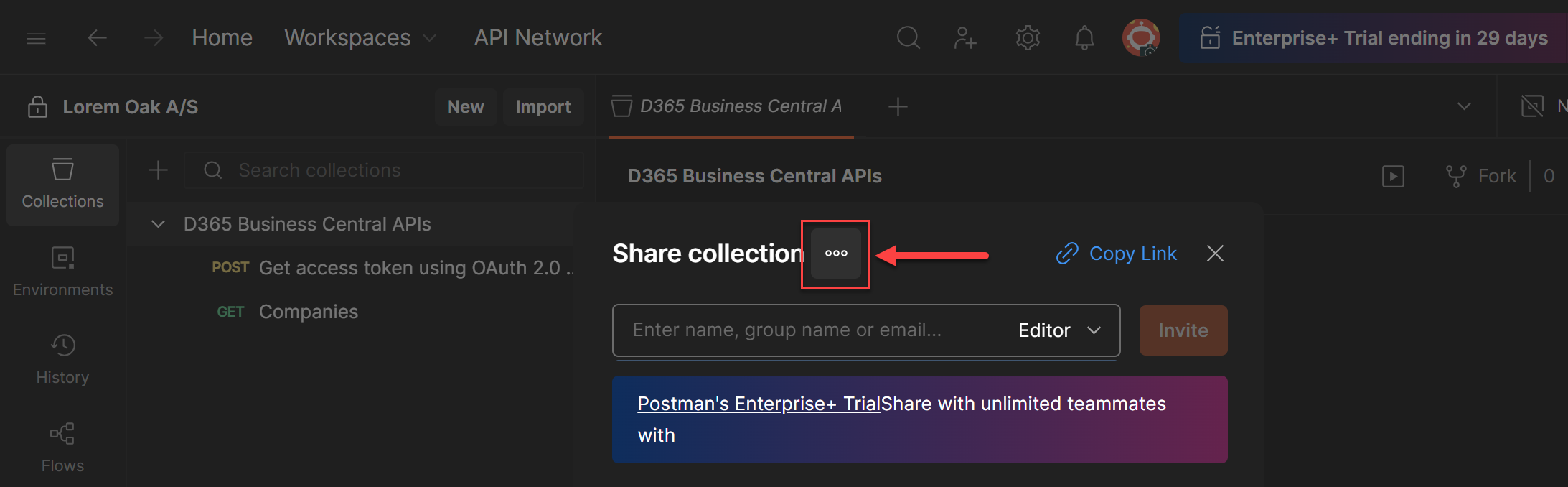
In the Share collection dialog, you'll see another three-dotted icon at the top. Click it and you'll get two options: Run in Postman and Share via API.
Click Share via API.
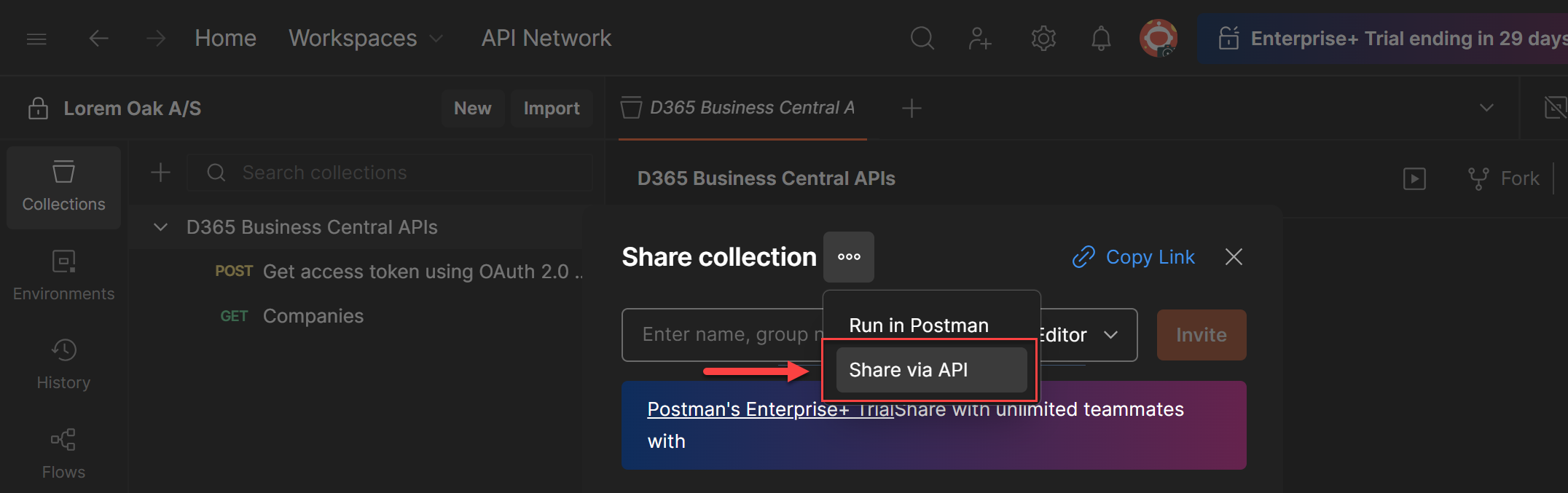
3. Generate the API link
Another dialog will pop up showing the API endpoint for your collection. Click Generate New Key to create an access key.
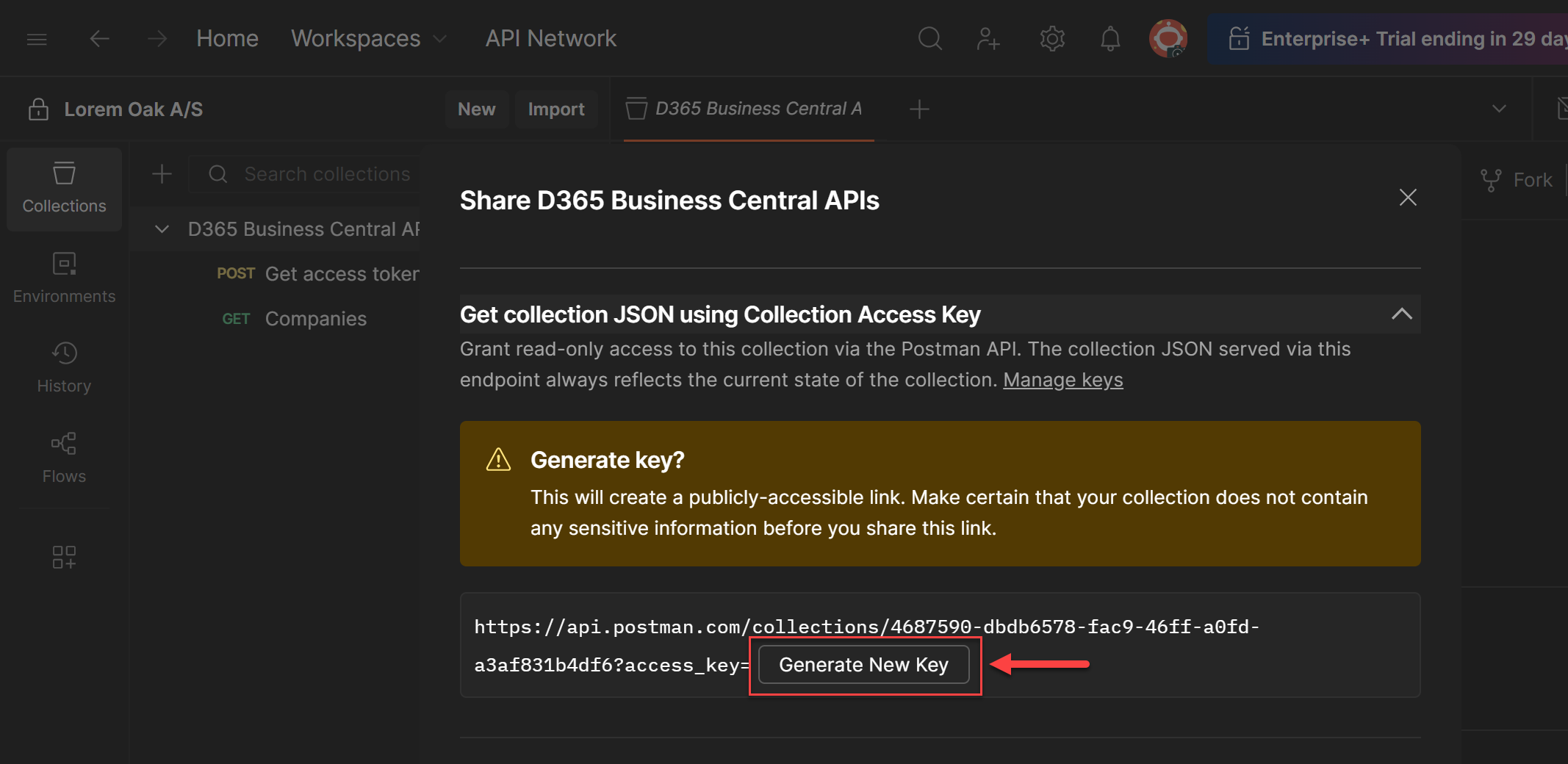
This generates a publicly-accessible link that looks something like this:
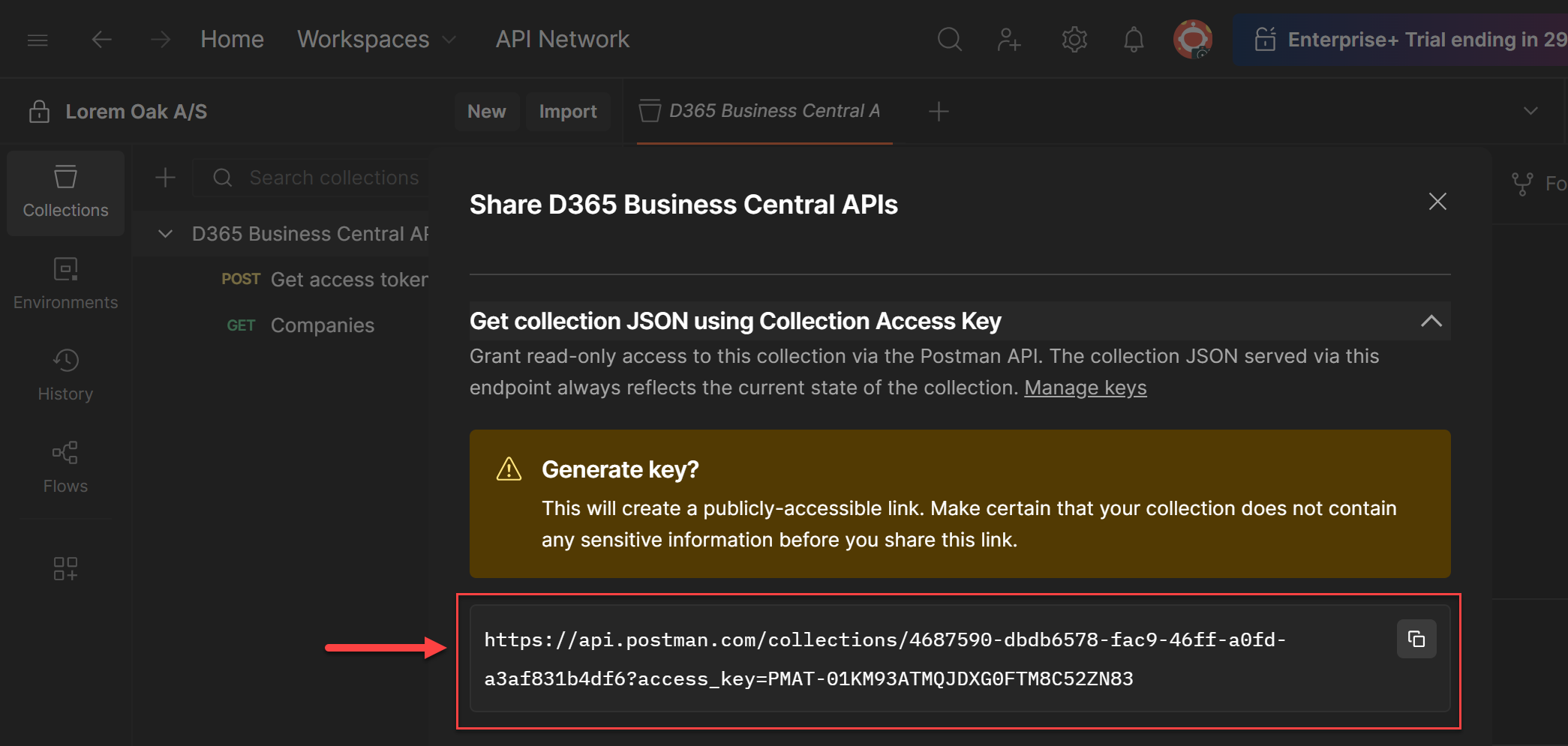
4. Share the link
Send that link to whoever needs it. They can paste it straight into Postman's Import dialog (the same way we imported Raw URLs in Part 1) and the collection loads right in.
No GitHub or Azure DevOps account needed, no repo access needed, no org invite needed. Just a link.
Conclusion
Part 1: Import collections using Raw URLs and file downloads was about getting collections into Postman the manual way. This part was about making it easier - importing directly from GitHub inside Postman, and sharing collections via an API link for people who don't have access to your repo.
But what if you want to automate the whole thing? Like, have your collection update itself every time someone merges to main?
In Part 3, we'll wire the Postman API into GitHub Actions and Azure DevOps pipelines so your collections stay up to date on their own. Stay tuned.
Support
Found this helpful? Repost to support the community and follow Jeffrey Bulanadi for clear, technical insights above and beyond Business Central and AL development.
Helpful References
Importing and Exporting Data in Postman | Postman Learning Center
Sharing Your Work in Postman | Postman Learning Center
Join the Conversation
Share your thoughts, ask questions, or discuss this article with the community. All comments are moderated to ensure quality discussions.
No comments yet
Be the first to start the conversation!
0 Comments
Leave a Comment