

Yo BC Artisans,
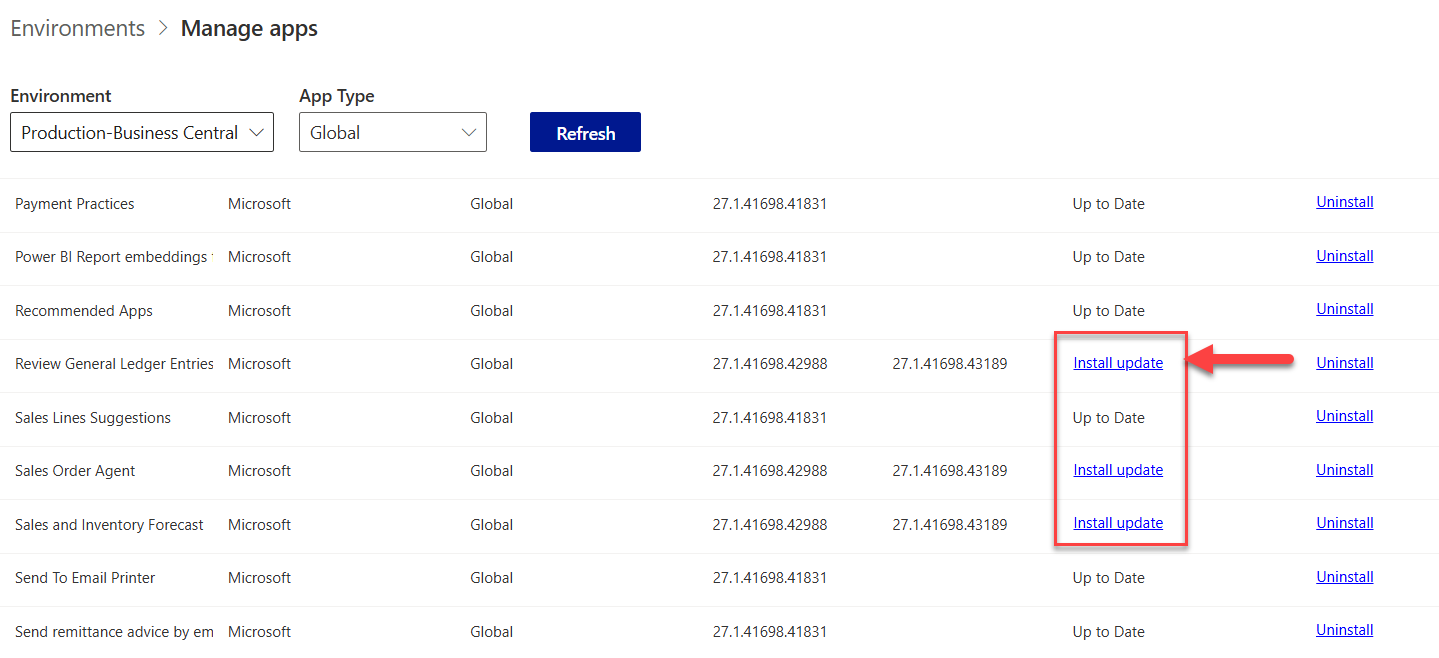
I want to share a short story on why I wrote this guide. So lately, I was working on one of our Microsoft AppSource products. It was done and completed, passed the AppSource preview validation, and finally went live.
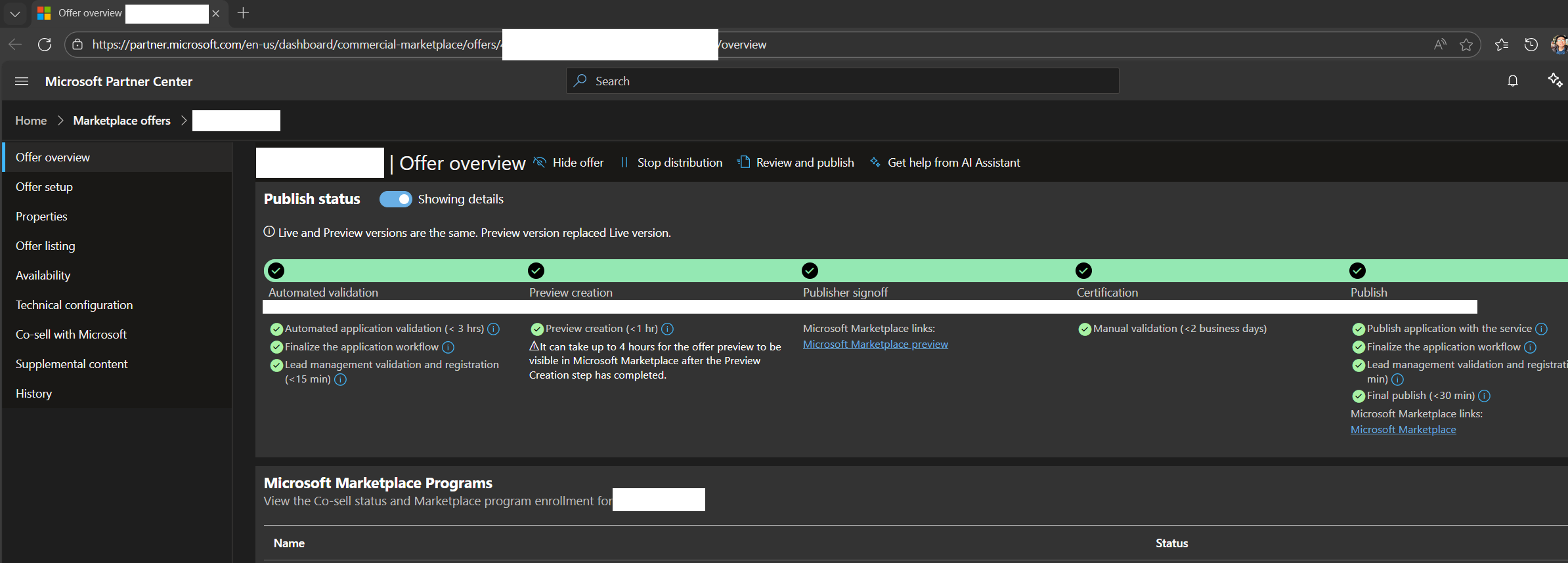
Then I told my consultant that it is now ready for him to update to the client environment, provided with my instructions. Then he came back asking why he cannot find my latest changes, but in other tenants it is available.
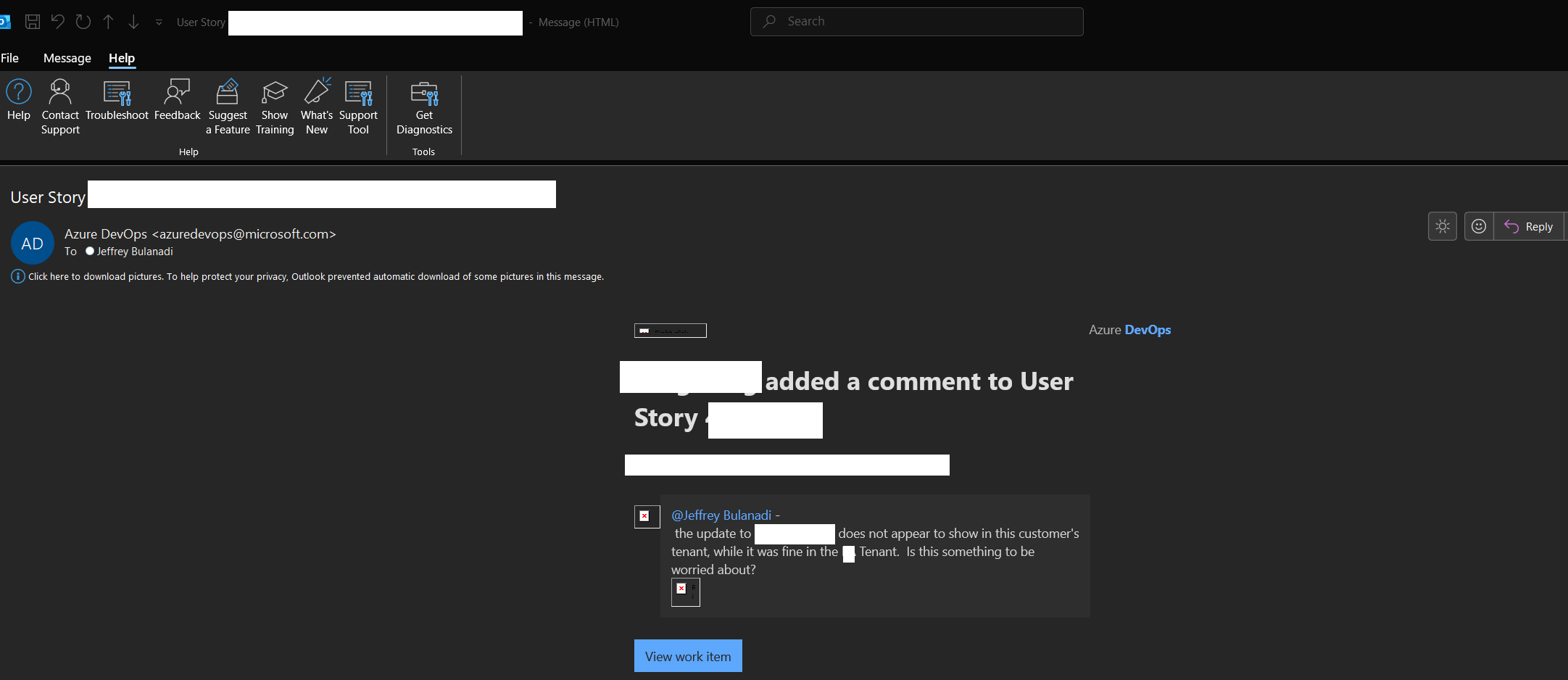
As I checked, it turns out the client was on a lower platform version. It was 26.5, and the latest app is only available in 27.X.
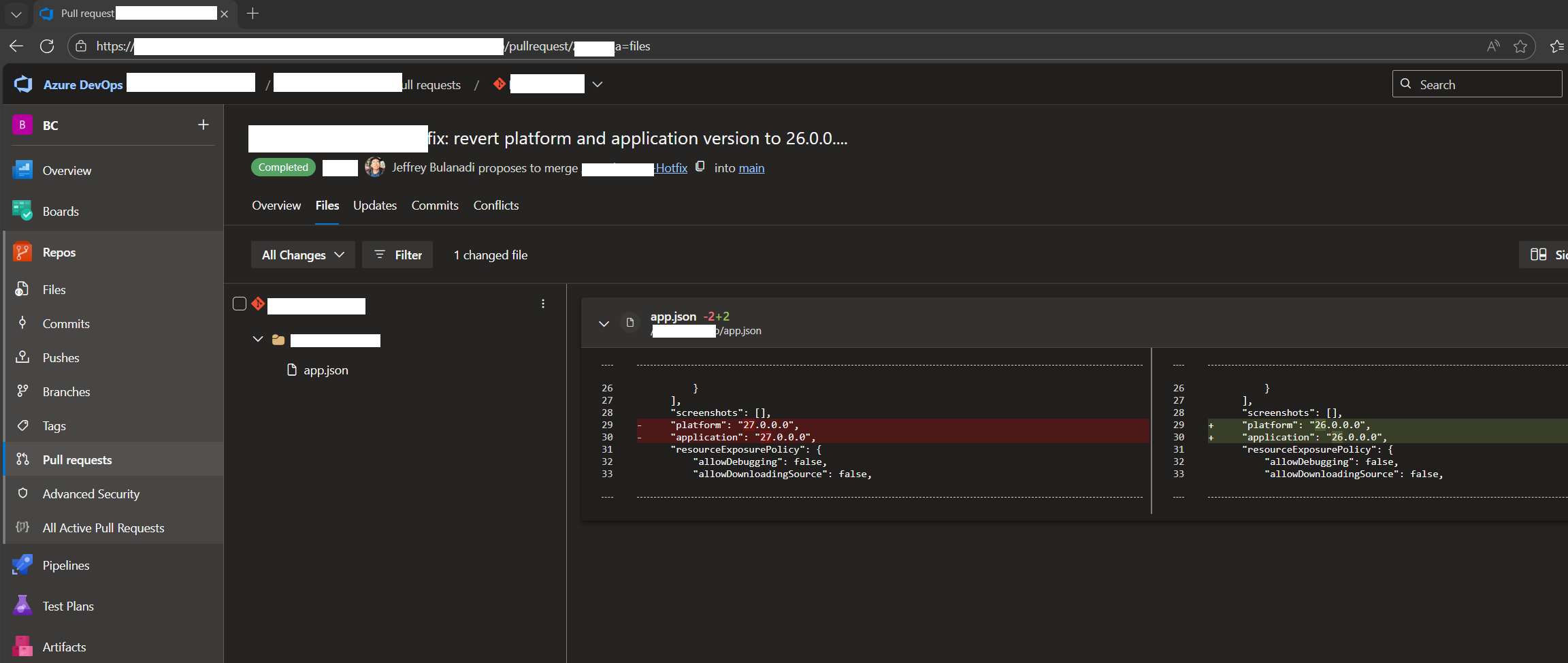
Per checking, one of the changes I made was all about the platform and application version in the app.json.
So I fixed and reverted the version and merged the change to trigger our pipeline build and release.
Anyway, that whole issue made me realize some people might not know how to update their global app properly. So if your app has gone live or you want to update your marketplace app, here’s a quick and no BS guide.
Before We Start (Prerequisites)
I just want to set a few assumptions before we jump into the steps:
- Permissions: You need access to the Business Central Admin Center to do anything I show here, It doesn’t matter if you’re using a CSP admin account or your domain account e.g. kupsy@yourawesomecompany.com. If you can’t open the Admin Center, you’re stuck.
- Maintenance Window: You don’t want Teams blowing up or users complaining while you’re updating, right?
Pick a safe maintenance window. And yes, telling your end users in advance saves headaches. Doesn’t have to be formal. Just a quick heads-up.
Step-by-step: Update an app in a BC environment
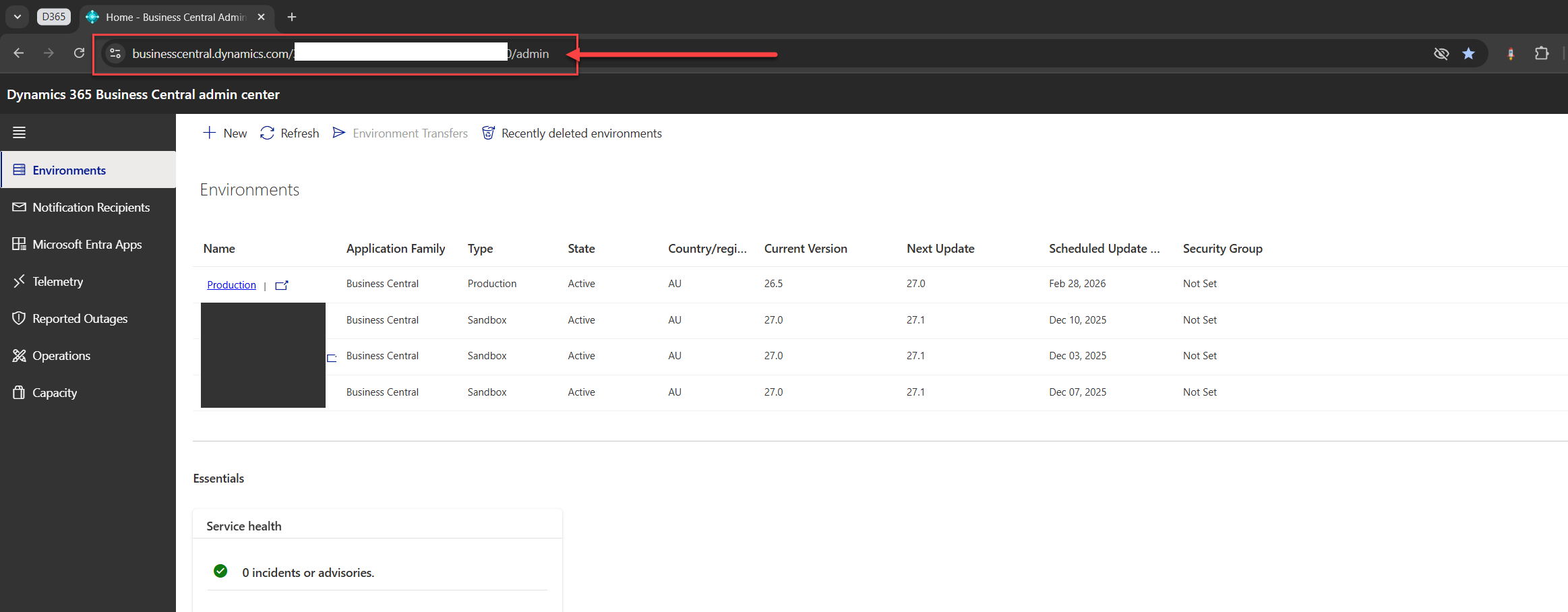
1. Go to the Business Central Admin Center.
The actual URL is: https://businesscentral.dynamics.com/<tenantId>/admin (Just replace <tenantId> with your tenant ID.)
This is where all your environments live, like the big control panel where you press the buttons.
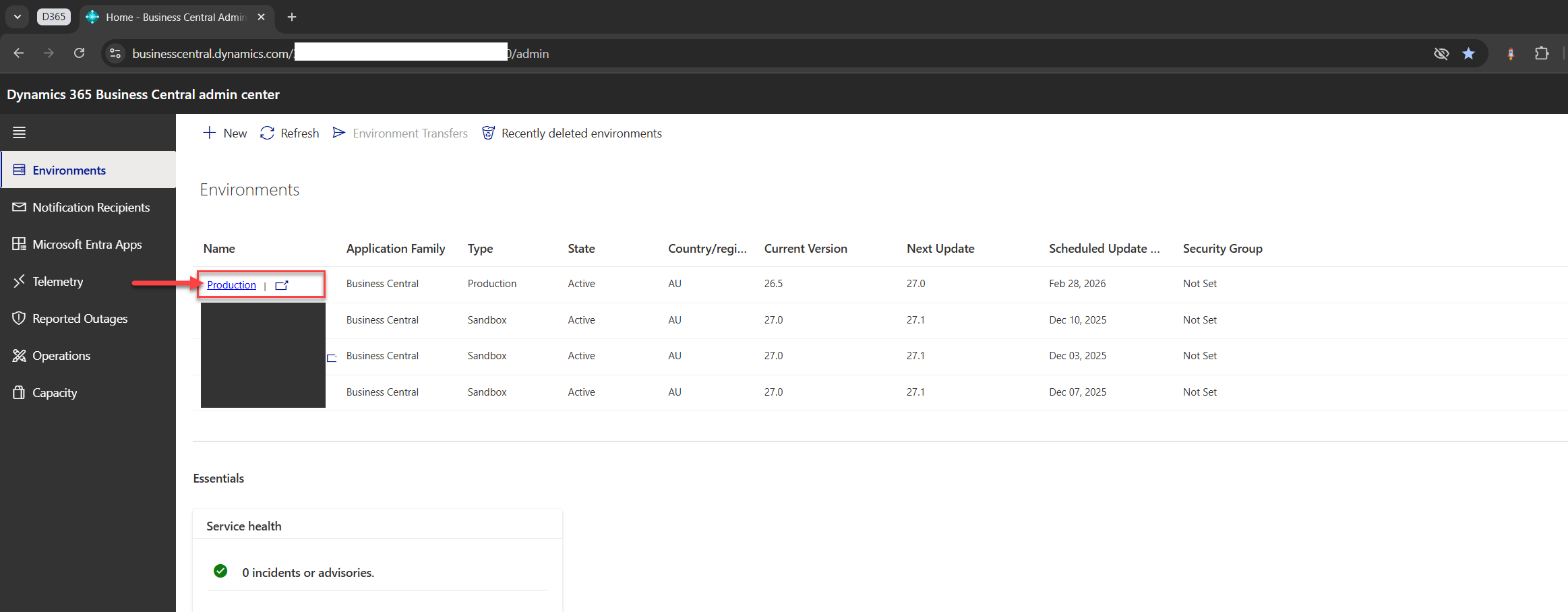
2. Select the environment you want to update.
Usually start with a sandbox before touching production. (but I'll do it in production anyway as I am done with sandbox)
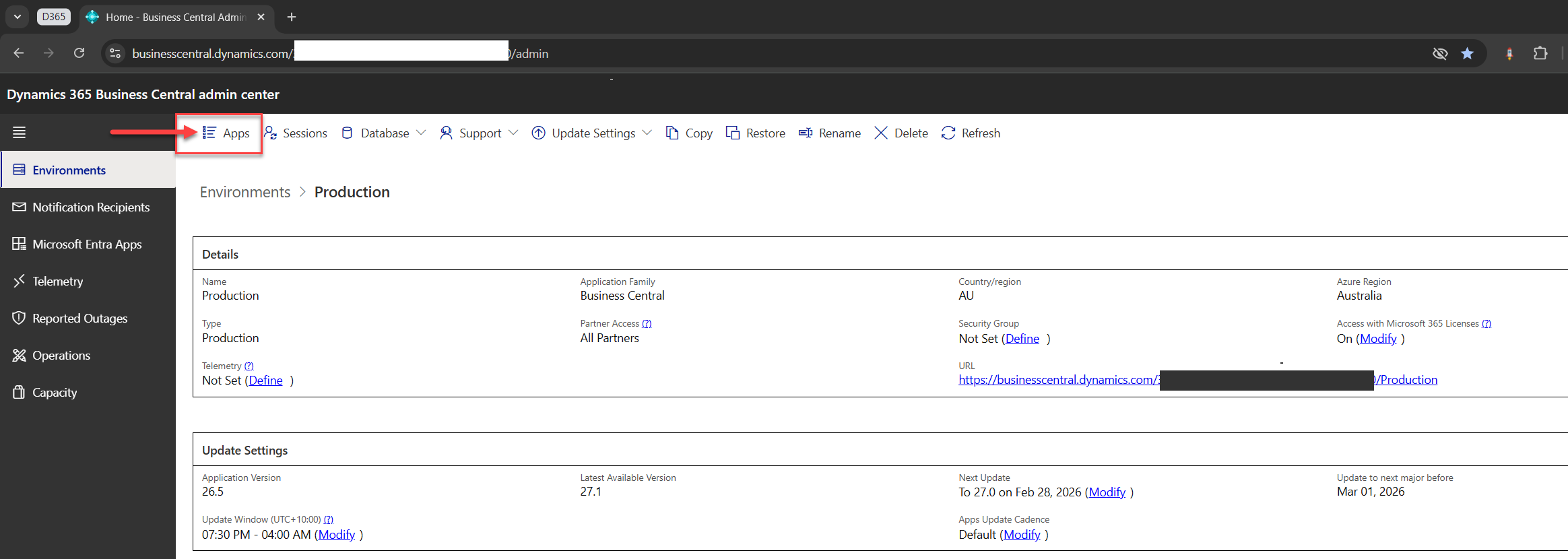
3. Click the Apps menu.
This is where all your installed extensions and marketplace apps hang out.
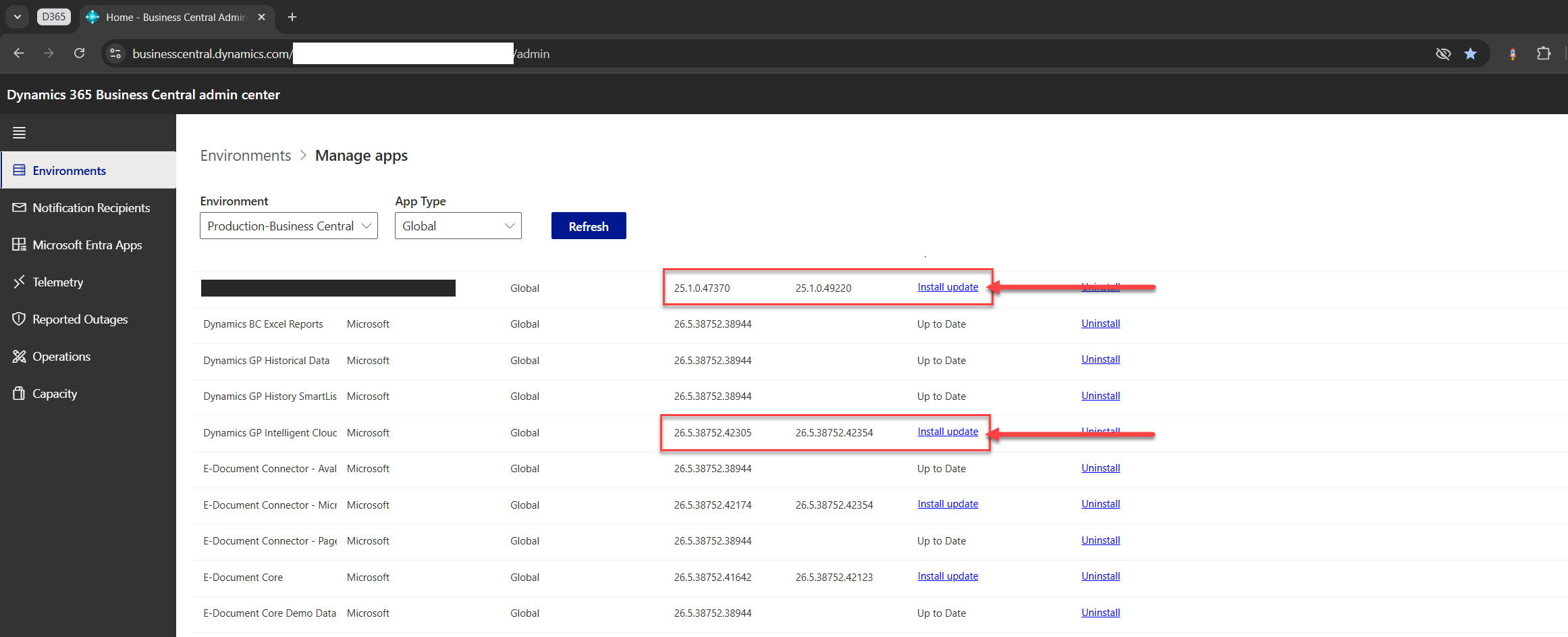
4. Select the app you want to update.
This is where all your installed extensions and marketplace apps hang out.
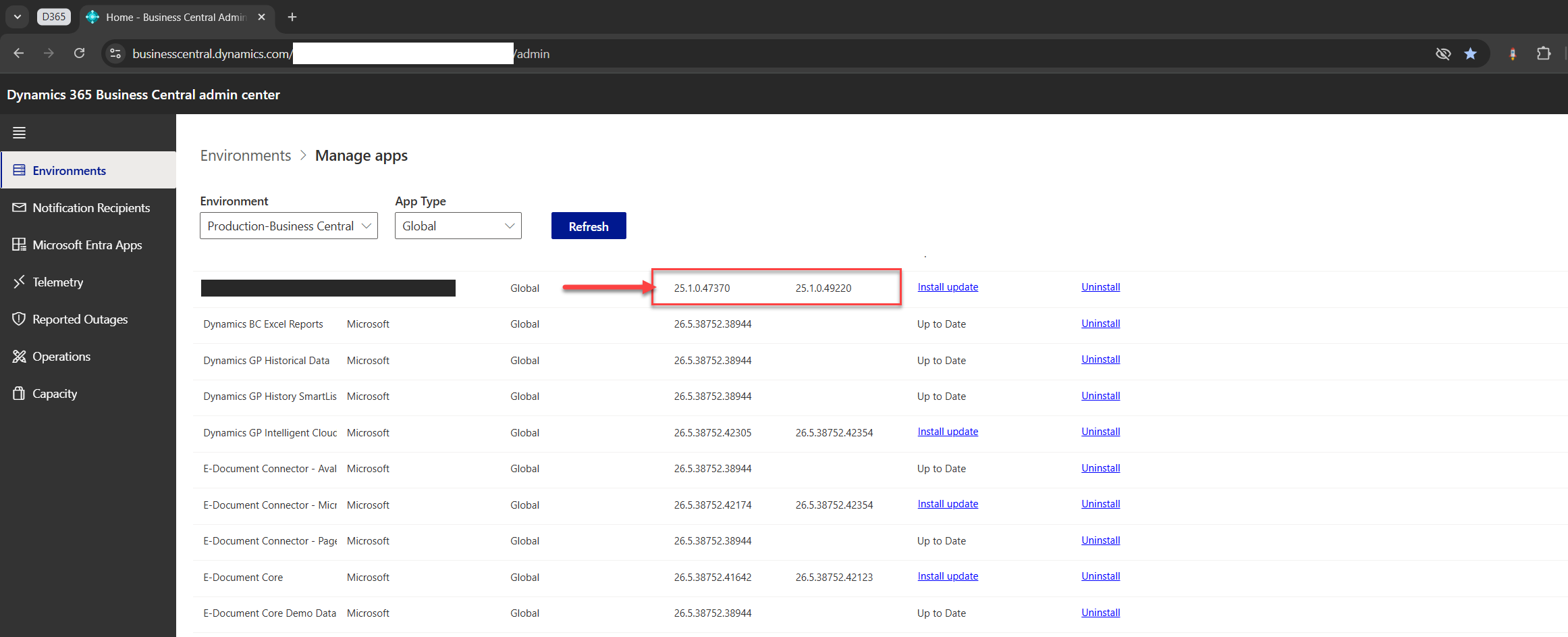
5. Click “Install update”.
Yep, that’s the magic button.
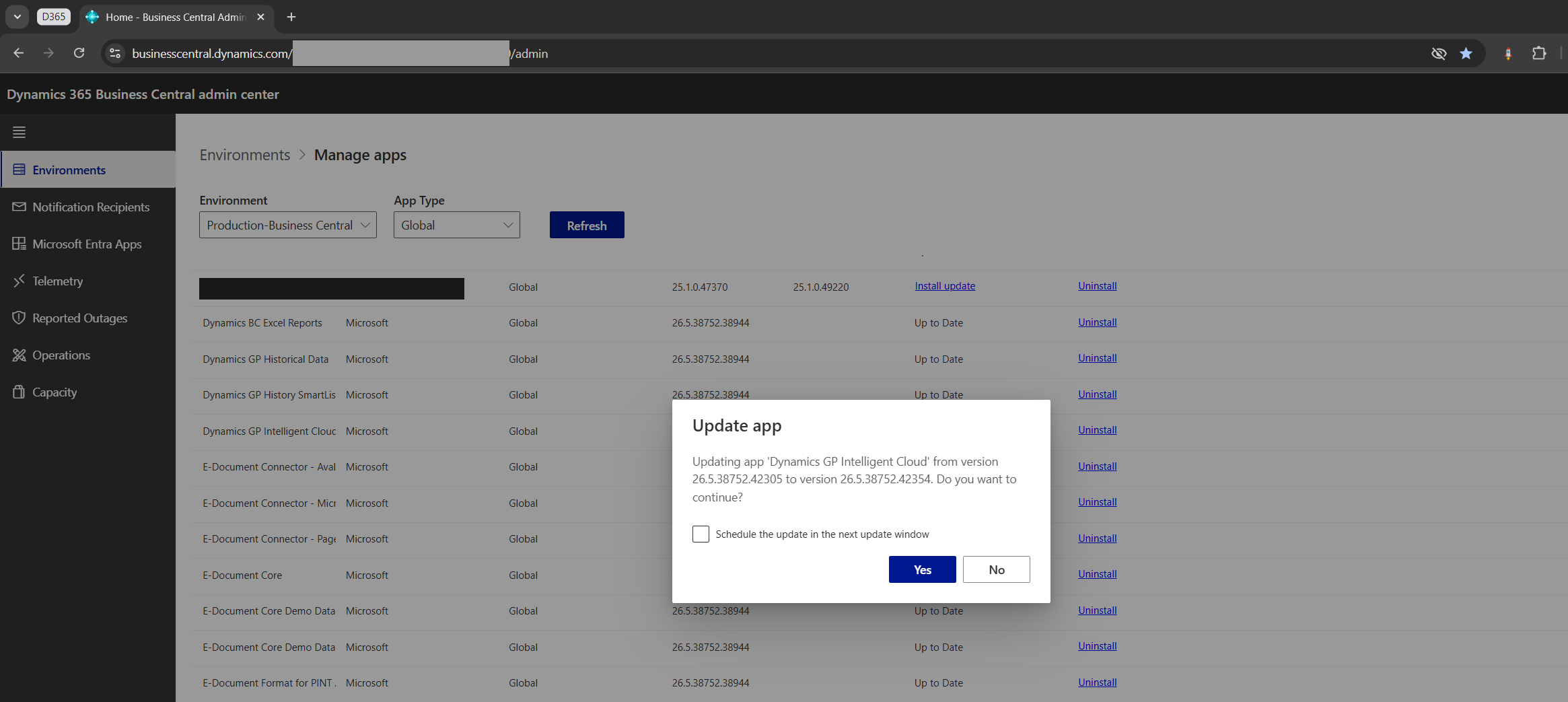
6. Confirm the popup.
BC will ask if you’re sure you want to update. Click Yes.
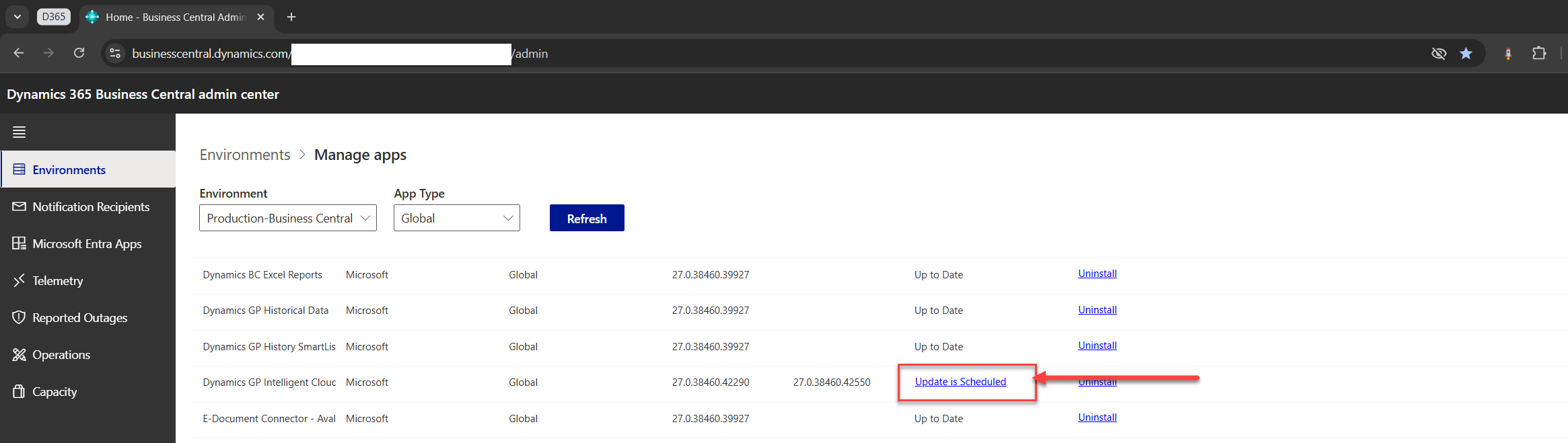
7. Check the status.
You’ll see the update is now scheduled. It might take a few minutes to complete depending on the app.
FAQ (Quick Answers)
- Does this update all companies? Yes. Admin Center updates the app at the environment level, so it is available to all companies in that environment.
- Will users be kicked out? Usually not, but some updates can temporarily affect availability. Schedule accordingly.
- What about Microsoft first-party apps? They may update alongside platform updates. The process looks similar in Apps when an update is available.
Final thoughts
That’s pretty much it. Update in a sandbox first, make sure everything behaves, then move to production when you’re ready.
Support for the Community
I’d appreciate some honest feedback. Good or bad, just drop a comment below.
Found this useful? Feel free to repost or share it. Let’s keep our Microsoft Dynamics 365 Community alive by spreading knowledge across the BC ecosystem.
Got questions? Just ping me here. And if you want to stay updated above and beyond Business Central, give me a follow: Jeffrey Bulanadi.
Demo Repository
All the code and screenshots are up on my GitHub.
Check it out here: How-To Update Global Apps in Business Central (a no BS guide)
Join the Conversation
Share your thoughts, ask questions, or discuss this article with the community. All comments are moderated to ensure quality discussions.
No comments yet
Be the first to start the conversation!
0 Comments
Leave a Comment